Most people use ChatGPT in a fairly simple way: enter a prompt, wait for the answer, then decide whether the result is useful. There is another feature, though, that is worth understanding.
A Useful Peek Behind the Curtain
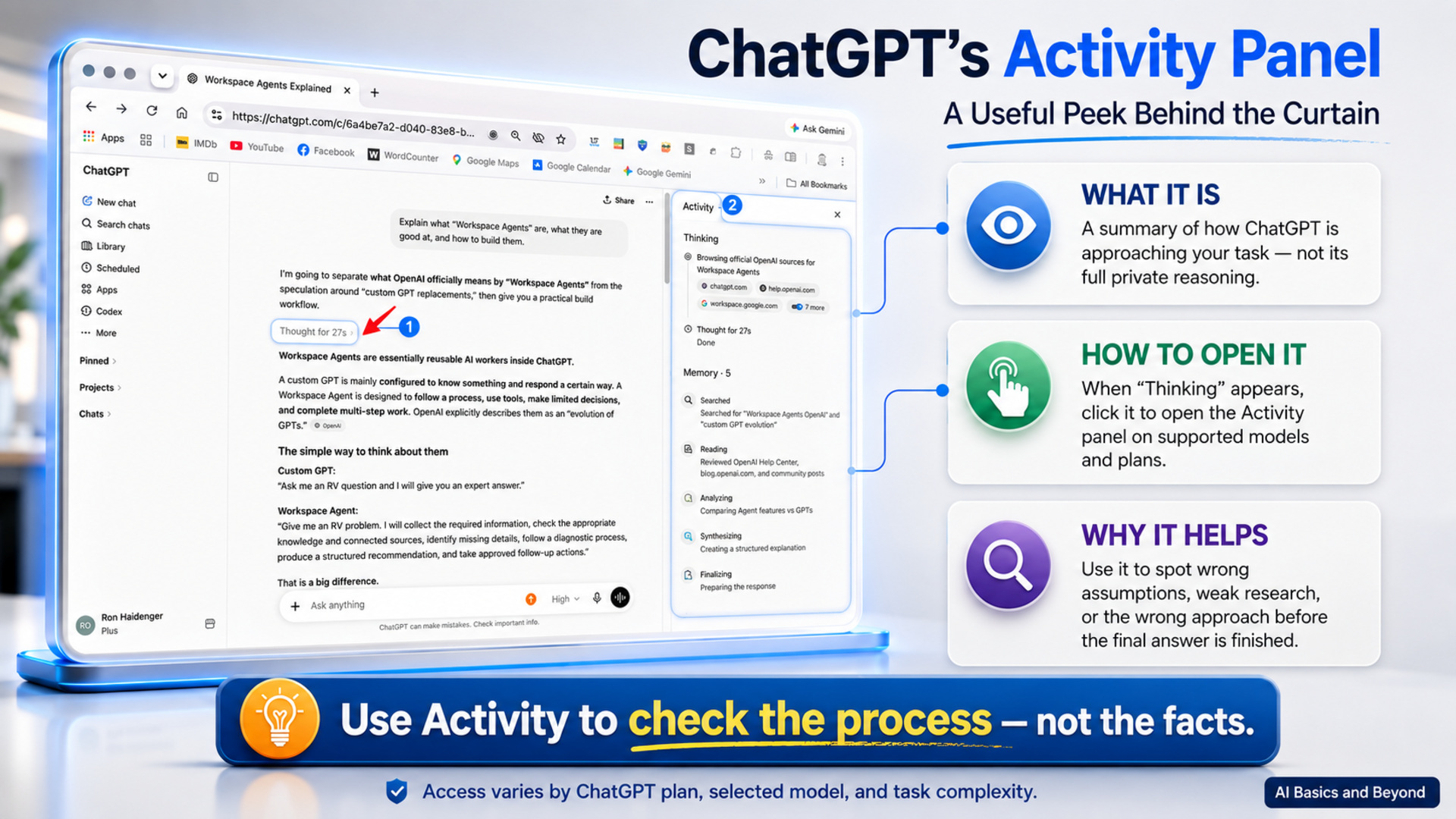
As of July 2026, some ChatGPT users can open an Activity panel when ChatGPT is using a Thinking model. It provides a summarized view of how ChatGPT is approaching the task and, used properly, can help you spot a problem before ChatGPT produces a beautifully written answer to the wrong question.
What Is the Activity Panel?
When ChatGPT is working on a more complex request, you may see a Thinking indicator. Click it and, on supported models and plans, the Activity panel opens on the right side of the screen.
What you see is not a word-for-word transcript of ChatGPT’s private reasoning. Think of it more as a simplified work summary. Depending on the task, it may show how ChatGPT interpreted your request, the approach it plans to take, assumptions it is making, information it is checking, or how it intends to organize the answer.
That may sound technical, but the practical value is simple: it helps you see whether ChatGPT is actually doing what you asked.
Why Should You Care?
Because ChatGPT sometimes misunderstands us. Shocking, I know.
You may ask it to compare two products, but it decides you want a general explanation. You may ask for a recommendation, but it plans to write a neutral overview. You may ask for current information, yet the activity gives you no indication that current sources are being checked.
The problem is that the final answer may still sound polished, confident, and completely reasonable. Unfortunately, confidence is not proof that ChatGPT understood the assignment.
Suppose you ask for a detailed comparison and the Activity panel says something similar to, “The user appears to want a broad introduction to the topic.”
There’s your warning sign. ChatGPT has taken the wrong exit.
You may be able to redirect it with something as simple as, “Stop. I don’t want a general overview. Compare the two options and recommend the better choice for a beginner.”
That small correction can be far more useful than adding another three paragraphs to your original prompt.
What Might You See?
The information varies by model, task, and the amount of reasoning involved. You may see summaries of how ChatGPT interpreted your prompt, the approach it intends to use, assumptions it is making, research or information-gathering activity, comparisons being performed, and how it plans to structure the answer.
For a very simple question, there may be little or nothing useful to examine. Ask ChatGPT what colour the sky is and you probably won’t witness an intellectual thriller.
The Activity panel becomes much more useful with research, planning, comparisons, troubleshooting, document analysis, and other multi-step tasks. Those are also the situations where a small misunderstanding early in the process can have the greatest effect on the final answer.
Who Has Access?
The experience is not identical for every ChatGPT user. The Activity panel is most closely associated with Thinking or reasoning models and tasks involving more complex reasoning or tool use.
Paid ChatGPT plans generally have broader access to Thinking models and deeper reasoning options. Free users may have more limited reasoning access and should not assume they will always see the same Thinking indicator, Activity panel, or amount of detail.
Your ChatGPT plan, selected model, and the task itself can all affect what appears. The simplest test is to try it.
How Do You Open It?
Give ChatGPT a task that requires some genuine thought. A comparison, research question, planning exercise, or problem-solving task is more likely to produce useful activity than a simple factual question.
When the Thinking indicator appears, click it. On supported versions of ChatGPT, the Activity panel opens on the right side of the screen. You can review the summarized activity as ChatGPT works or examine it after the response is completed.
How Should You Use It?
I suggest watching for three things.
First, check ChatGPT’s interpretation. Does it appear to understand what you actually asked? A surprising number of poor AI answers begin with a small misunderstanding of the original request.
Second, watch for assumptions. If ChatGPT is assuming something important, ask yourself whether that assumption is correct. Wrong assumptions have a nasty habit of producing very convincing wrong answers.
Third, check the planned approach. Did you ask for a recommendation while ChatGPT is preparing a general overview? Did you ask for recent information while the activity suggests no current research is being done? Did you ask for a beginner-friendly explanation while ChatGPT is heading into technical detail?
Those are good reasons to redirect the conversation before it gets too far down the wrong path.
One Important Caution
The Activity panel is not a fact-checking system. Seeing ChatGPT’s summarized approach does not prove that the final answer is accurate.
I use a simple rule:
Use Activity to check the process. Use reliable sources to check the facts. Use the final answer to judge the result.
For members of AI Basics and Beyond, I think the Activity panel is worth exploring. We spend a great deal of time talking about better prompts, and rightly so, but learning to watch how ChatGPT interprets those prompts can be just as valuable.
Sometimes the fastest way to improve an AI answer isn’t to write a longer or more complicated prompt. It’s simply noticing early enough that ChatGPT has confidently wandered off in the wrong direction.